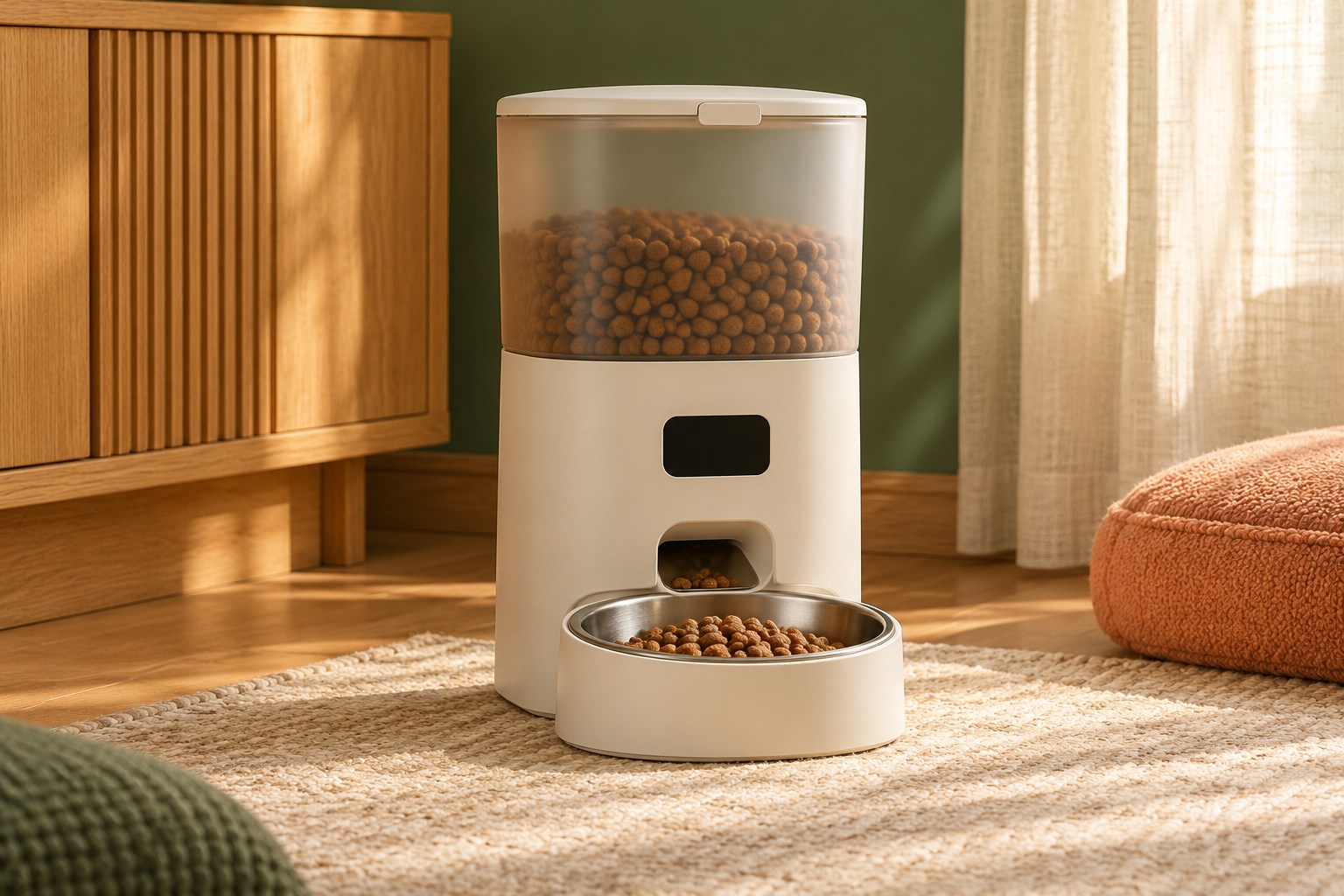
Automatic feeders combine two jobs: holding food and keeping time. The second job deserves its own setup session. A mistaken morning-versus-evening setting or a schedule that repeats differently than expected can go unnoticed if you only test the manual dispense button.
Begin with the complete manual and a written version of your intended schedule. Use ordinary times such as 7:30 in the morning and 6:00 in the evening before translating them into the feeder's display or app interface.
Establish which clock the device uses
Some feeders keep time locally, while connected models may obtain time from an account or network setting. Check the selected time zone and whether the display uses twelve-hour or twenty-four-hour format. In a twelve-hour display, confirm each AM or PM marker individually.
Do not assume the app's phone clock and the feeder's clock are identical. Look for a status screen or a documented synchronisation step. If there is no visible device time, a short supervised scheduled test can reveal how the system interprets the setting.
Test a real scheduled event
Create a temporary event a few minutes ahead while you are present, following the permitted setup method. Confirm that it runs once, dispenses into the bowl, and leaves the expected next event displayed. Then remove the temporary event so it cannot recur accidentally.
A manual button test verifies only part of the system. It does not show whether weekday rules, time-zone settings, or repeat options are correct. If different days use different schedules, review each day rather than assuming a copied setting propagated successfully.
Prepare for clock changes and resets
Consult the manual for daylight-saving behaviour and what happens after batteries are replaced, power is interrupted, or the device is reset. Some settings may remain while others need re-entry. Record the manufacturer's instructions with your schedule notes.
After a clock change, check both current time and upcoming events. A feeder that displays the new hour correctly could still retain an unexpected event configuration. Avoid stacking extra manual servings merely because the schedule looks unfamiliar; first establish what has already been delivered.
Make household checks simple
Keep a short record of the intended times, settings, and last successful supervised test. If multiple people manage the feeder, agree who edits the schedule. Competing changes in an app and on the device can make troubleshooting unnecessarily confusing.
Before using a feeder during an absence, verify its routine across several ordinary days and arrange appropriate human care. A schedule is a convenience feature, not a complete plan for an animal's needs. Make sure the person checking the pet knows how to serve food manually.
Check how schedule edits take effect
A connected feeder may require a save, sync, or confirmation step after an event is changed. Read the exact editing sequence and look for a visible acknowledgement. Do not assume leaving the screen commits the new time. If the device has both physical controls and an app, find out which setting takes precedence when they differ.
For a hypothetical change from 6:00 to 6:30 in the evening, review the event list afterward to ensure you edited the original event rather than creating a second one. Observe the next appropriate run while present and confirm there is only one delivery. Keep temporary testing separate from the permanent schedule. A screenshot can help another caregiver review the final arrangement, but the device's actual behaviour remains the important check.
Leave a record of the last edit
Write down when the schedule was last changed and by whom. This is particularly helpful when one person edits a phone app while another uses the buttons. If a delivery occurs unexpectedly, compare the event list with that record before resetting the machine. A full reset can remove useful evidence about what was programmed.
Keep the note factual: changed evening event from 18:00 to 18:30, saved successfully, observed one run. Include the next planned check after a battery change or clock adjustment. That small amount of documentation makes troubleshooting a specific event rather than a disagreement about what someone remembers entering.
For our approach to product claims and illustrations, see the Editorial Policy.